

Plan Details
Click any Plan card to open its detail view. This is where you see the full history for that plan, manage its reference curve, and start a new roast.
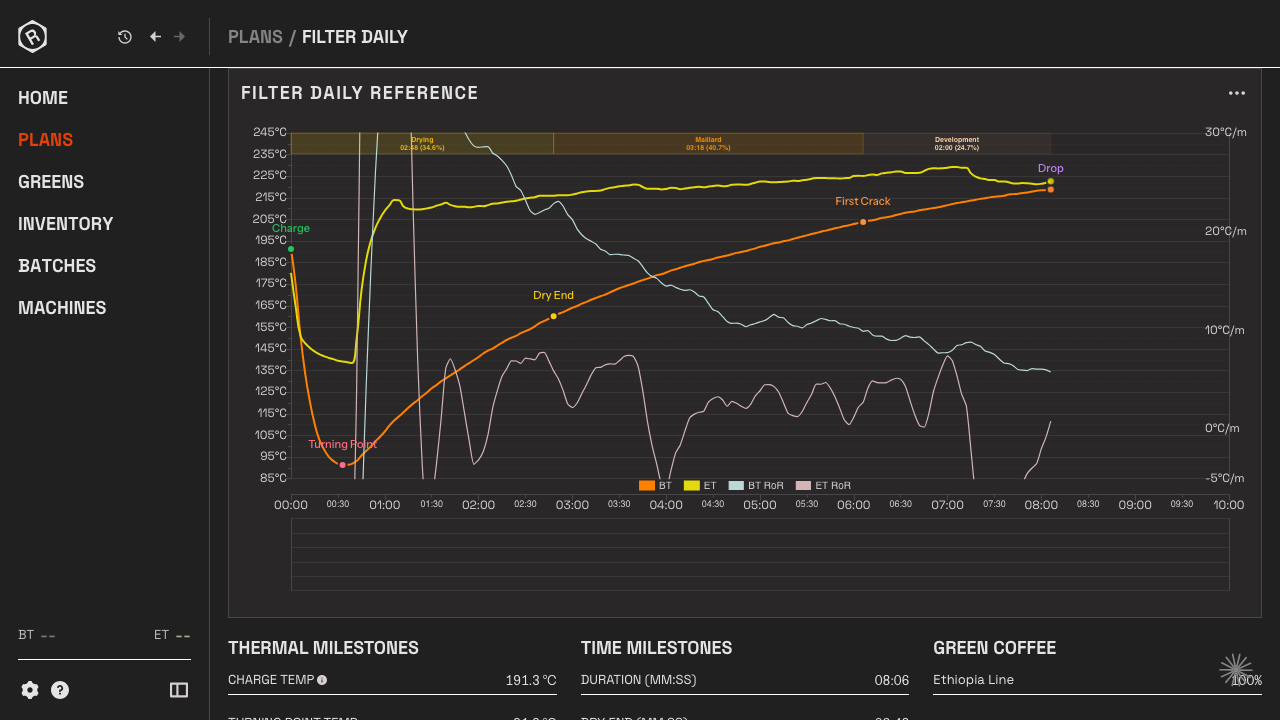
The top section shows key metrics pulled from the plan’s reference curve and targets:
| Stat | What it shows |
|---|---|
| Green Coffee | The Coffee Line assigned to this plan, or the blend composition if the plan uses multiple Coffee Lines |
| Input Weight | Charge weight from the reference curve, or the plan’s target if no reference is set |
| Output Weight | Drop weight from the reference curve |
| Weight Loss % | Actual weight loss from the reference curve, or the target percentage |
| Charge Temp | Bean temperature at the start of the roast |
| Drop Temp | Bean temperature at the end of the roast |
| Turning Point Temp | Temperature at the turning point |
| Duration | Total roast time |
| Dry End | Time of the dry end phase |
| First Crack | Time of first crack |
| DTR % | Development time ratio |
Stats populated from the reference curve update automatically when you change the reference.
Reference curve
Section titled “Reference curve”The reference curve is the target overlay shown on the live display during a roast. Below the stats you’ll see:
- A temperature chart if a reference curve is set
- A prompt to set one if none exists
Set a reference from a previous batch
Section titled “Set a reference from a previous batch”In the Batches table at the bottom of the page, click the star icon on any batch row to promote it to the reference curve. The star marks the current reference. Click a different batch’s star to switch.
Batches table
Section titled “Batches table”Each row in the Batches table represents a single recorded roast against this plan. Clicking a row opens the full Batch detail → page.
| Column | What it shows |
|---|---|
| ★ | Star to set this batch as the reference curve. Filled star = current reference. |
| Date | Date and time the roast started |
| Plan | Plan the batch is linked to |
| Batch | Curve name recorded during the roast |
| Amount | Charge weight (input weight) |
| Duration | Total roast time |
| Drop | Bean temperature at drop |
Import a reference curve
Section titled “Import a reference curve”Click Import reference to load a curve from an external file:
- Import from Cropster — import a roast exported from Cropster as an
.xlsfile - Import from Artisan — import an
.alogfile from Artisan
The imported curve is set as the reference immediately. Switching from another app? The Artisan and Cropster switching guides cover what carries over.
Below the reference curve section you’ll find the plan’s notes. These are the pre-roast notes entered when the plan was created or last edited.
Start a roast
Section titled “Start a roast”Click Open in Roast Studio to begin a Batch against this plan. The Reference Curve will be visible in Roast Studio.
If the plan targets a specific Machine, Rostoc switches to it and connects automatically before Roast Studio opens. A confirmation message appears below the page header when a Machine switch will happen.
Edit plan details
Section titled “Edit plan details”Click Edit Plan to update the name, Coffee Line, charge weight, weight loss target, machine, or notes. Changes take effect immediately for all future batches — they do not alter completed batch records.
Plans can also be set up as blends. In that case, choose multiple Coffee Lines and set a percentage for each one. The percentages must add up to 100%.
In edit mode you can also click Save as new plan to duplicate the plan with your current edits rather than overwriting the original.
Delete a plan
Section titled “Delete a plan”Click Edit Plan, then Delete at the bottom of the dialog. You’ll be asked to confirm. Deleting a plan removes it from the list and clears references from associated batches — the Batches themselves are not deleted.