

Coffee lines
The Coffee lines screen is where you track your green coffee stock. It is organised into three levels: Coffee Lines, Lots, and Warehouses. Warehouses are managed in Settings → Warehouses.
Open it from Coffee lines in the sidebar, or press G then C. Before Rostoc 0.4.6 this screen was called Greens.
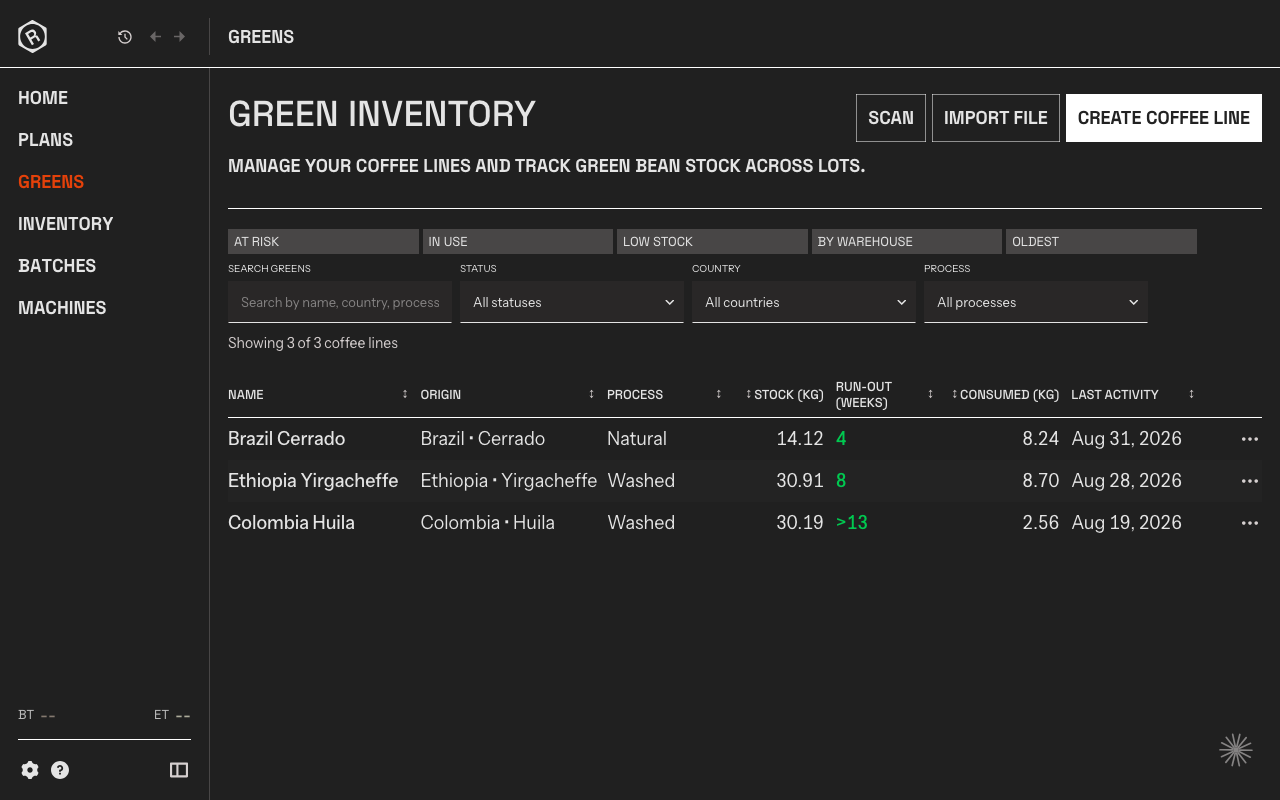
Finding a coffee
Section titled “Finding a coffee”Above the table, five presets narrow the list to one question at a time:
| Preset | Shows |
|---|---|
| At Risk | Coffee Lines whose estimated run-out is close enough to act on |
| In Use | Coffee Lines you are roasting from right now |
| Low Stock | Coffee Lines below the low stock threshold you set |
| By Warehouse | Coffee Lines with stock in a warehouse you pick |
| Oldest | The whole list, oldest Coffee Line first |
Search coffee lines matches name, country, process, variety, and producer, and the Status, Country, and Process menus narrow it further. Everything except Oldest sorts by urgency: soonest to run out, at the top.
Scan, in the … menu at the right end of the page header, opens the scanner, so a barcode reader or a scanned label takes you straight to the Lot it belongs to. See Labels and codes.
Coffee Lines
Section titled “Coffee Lines”A Coffee Line is a category of coffee you roast on an ongoing basis — for example, “Ethiopia Yirgacheffe Washed” or “Brazil Natural”. It groups all the Lots you’ve received for that same purpose over time, so you can track stock and compare batches across deliveries.
Create a Coffee Line
Section titled “Create a Coffee Line”Click Create Coffee Line and fill in:
| Field | What it means |
|---|---|
| Name | A short, recognisable label (required) |
| Country | Country of origin (required) |
| Region | Growing region within the country (e.g. Yirgacheffe) |
| Producer/Farm | Name of the producer or farm |
| Variety | Coffee variety (e.g. Heirloom, Gesha) |
| Process | Processing method (e.g. Washed, Natural, Honey) |
| Altitude (m) | Growing altitude in metres |
| Supplier | Your green coffee importer or broker |
| Low Stock Threshold (kg) | Below this weight, the Coffee Line counts as Low stock in the Status menu and the Low Stock preset |
| Sensorial Notes | Flavour profile, cupping description, or any tasting context |
Stock at a glance
Section titled “Stock at a glance”Each row in the table shows the Coffee Line’s stock, its estimated run-out in
weeks based on recent usage, how much you have roasted from it, and its last
activity. The run-out figure changes colour as it gets close. When the line
has coffee on order, a sentence under the run-out says when it arrives, for
example 60 kg on order, arrives 28 Oct 2026, before run-out; the Coffee
Line’s own page shows the same sentence under its run-out.
Open a Coffee Line to see its available stock, the Lot in use, its Lots, and its run-out, with a chart of stock and transaction flow across all its Lots.
Edit, add a Lot, or archive
Section titled “Edit, add a Lot, or archive”Click a row to open the Coffee Line. The … menu at the end of each row holds Add Order, Add lot, Edit coffee line, and Archive, the same menu the Coffee Line has on Home and in Inventory. Add Order opens a new order for that coffee without leaving the list. On the Coffee Line’s own page, Add Order is the main button and the rest sit in its … menu. Archiving hides a Coffee Line you no longer buy from the list. If its Lots still hold stock, the dialog says how much and asks what happens to the Remaining lots: Keep in inventory leaves them as they are; Finish finishes each Lot at zero with a reason you choose, and the closing rows are listed on the Inventory Due diligence page.
Archived lines are a status: choose Archived (or All) in the Status menu to see them, and the Status column reads Archived. The other statuses are Active (the default, every line not archived), In stock, Low stock, and Out of stock. To bring a line back, choose Restore from its row’s … menu or on its page, where Restore replaces Add Order while it is archived. Lots finished when it was archived stay finished; reopen one from its lot page.
A Lot is a specific delivery or purchase under a Coffee Line. Click a Coffee Line to open its detail view and see all its Lots.
Find a Lot
Section titled “Find a Lot”Above a Coffee Line’s Lots, Search lots matches the lot code, invoice, grade, crop year, and notes. The Status menu narrows the list to In Stock, Arrived, In Transit, Ordered, or Finished. When you have more than one warehouse, the Warehouse menu shows the Lots in one of them. Clear Filters brings back the whole list.
Finished Lots stay hidden until you turn on Show finished lots. A long list shows more Lots as you scroll.
Add a Lot
Section titled “Add a Lot”Inside a Coffee Line, open the … menu beside Add Order and choose Add lot. Each Lot gets an auto-generated lot code you can reference throughout Rostoc, and that code can be printed on a label for the sack it arrived in.
Basic details
| Field | What it means |
|---|---|
| Initial Weight (kg) | Total green weight received (required; cannot be changed later — use stock adjustments) |
| Purchase Date | When you ordered or purchased the coffee |
| Arrival Date | When the coffee arrived at your roastery |
| Cost per kg | Green cost per kilogram, in the currency you paid. A new Lot starts at the price you last paid for that Coffee Line. |
| Warehouse | Storage location for this Lot. To change it later, move the Lot. |
| Notes | Any additional notes about the delivery |
Quality control
| Field | What it means |
|---|---|
| Crop Year | Harvest year (e.g. 2024) |
| Grade | Quality grade (e.g. SHB, EP) |
| Screen Size | Screen size range (e.g. 15-18) |
| Moisture (%) | Moisture content percentage |
| Water Activity (aw) | Water activity reading |
| Density (g/mL) | Bean density |
The Lot in use
Section titled “The Lot in use”The star icon marks the Lot you are currently roasting from. Rostoc keeps it up to date on its own: roasting from a Lot makes it the one in use, and when a Coffee Line has exactly one Lot there is nothing to choose. Marking a Lot by hand is for the moment you move a new bag from storage to the roastery before its first roast — starring it un-stars the previous one on that Coffee Line, and never touches your roast history or stock.
When you set up a roast, Rostoc pre-selects the Lot in use. If several Lots have no history yet, it asks instead of guessing.
Ordering green coffee
Section titled “Ordering green coffee”When a coffee runs low, order the next delivery without leaving its page: Add Order on the Coffee Line creates an order with the quantity, the price (prefilled from your latest Lot), the supplier, an expected arrival date, and a tracking link. Open orders appear in an Incoming section on the Coffee Line until they arrive; click one to open the order’s page. Received and cancelled orders move to the Orders list further down the page.
An order moves through its life by what actually happens: Draft while you decide, On order once you confirm (the invoice is paid), and Received when the coffee lands. Each open order’s … menu holds Confirm (on a draft), Receive, Edit, and Cancel order. Cancel a draft or an unarrived order at any time — Rostoc asks first, because a cancelled order cannot be reopened. Cancelling a confirmed order asks why: Supplier could not deliver, Ordered by mistake, Bought elsewhere, Price or terms changed, No longer needed, or Other with your own words. The reason stays in the order’s history. A received order is permanent, because its Lots are now your stock records.
Receiving is where the order becomes Lots. Enter the weights as they
arrived — two 60 kg bags and a 30 kg bag can be three rows, or two, however
you want to track them — and each row becomes a Lot with the order’s price
and invoice reference already on it, linked back to the order. The received
total does not have to match the ordered quantity: what arrived is what
counts. Under the rows, Rostoc adds up what you have entered against what you
ordered, for example 118.5 kg entered of 120 kg ordered and 1.5 kg less than ordered, so a short delivery is clear before you save it.
Finish a Lot
Section titled “Finish a Lot”When a Lot is used up or you stop roasting from it, choose Finish from the Lot’s … menu. A finished Lot reads zero. It is no longer the one in use, it is not offered when you pick a Lot for a roast, and the Coffee Line hides it unless you turn on Show finished lots.
If the Lot still shows stock, Rostoc asks why before it finishes it. The dialog says what it will record — for example, “still holds 12.57 kg. Finishing records -12.57 kg so it reads zero” — and you choose a reason. If more was roasted from the Lot than it held, the row is positive instead. A difference of 100 g or less is routine at the end of a Lot, so Bag-end difference is already chosen. A Lot that already reads zero finishes at once, with no question.
The reasons for finishing are:
- Bag-end difference
- Entered by mistake
- Count or weighing
- Sample or loss
- Roast not recorded in Rostoc
- Other — say what happened in your own words
Click Finish lot to confirm. The row appears in the Lot’s history as Closed, with your reason beside it.
Close out a finished Lot
Section titled “Close out a finished Lot”A roast can still land on a Lot after you finish it — for example, one recorded on another computer before it heard about the finish. Rostoc keeps the roast. Its row reads Roasted after finish, and the Lot reads below zero.
When a finished Lot no longer reads zero, its … menu offers Close out. It asks for a reason, like Finish, and records the row that brings the Lot back to zero. The Lot stays finished.
Reopen a Lot
Section titled “Reopen a Lot”Choose Reopen from a finished Lot’s … menu to use it again. Reopening undoes the rows that closed it, so the Lot holds what it held before you finished it. Each undone row reads Reopened in the history. The Lot comes back in stock, or in low stock if it is under its Coffee Line’s threshold. A Lot that reopens at zero or below stays open, so you can adjust it.
A finished Lot cannot be adjusted, split, or moved. Reopen it first.
Stock adjustments
Section titled “Stock adjustments”Rostoc tracks consumption automatically as Batches are recorded. If you need to correct the stock (e.g. after a physical count or a loss), open the Lot’s … menu — at the end of its row, or at the right end of the Lot page’s header — and choose Adjust stock.
Enter either the New Stock the Lot should read, or the Weight Change as a positive or negative number. Rostoc fills in the other. Then choose a Reason:
- Roast not recorded in Rostoc
- Entered by mistake
- Count or weighing
- Sample or loss
- New delivery — a new delivery is easier to trace as its own Lot, so Rostoc offers Add a lot instead
- Moved to another lot — moving coffee between Lots is a split, so Rostoc offers Use split instead
- Other — say what happened in your own words
Details is optional for every other reason. Click Apply. The row appears in the stock history as Adjustment, with the reason and your words beside it — for example, “Count or weighing · Recounted”.
Lot splitting
Section titled “Lot splitting”Lot splitting lets you move part of a Lot’s stock into a new or existing Lot. Choose Split stock from a Lot’s … menu, enter the weight to split in kg, choose a destination, add an optional reason, then confirm.
You can split to a New lot at a warehouse or to an Existing lot. Rostoc records both sides: an outgoing row on the source Lot and an incoming row on the destination Lot. Each reads Transfer, with a link to the other Lot (→ on the source, ← on the destination).
Use this when you want to send part of a delivery to another warehouse, set aside stock for sample roasting, or redistribute green coffee between Lots.
Move a Lot to another warehouse
Section titled “Move a Lot to another warehouse”To move a whole Lot, choose Move to another warehouse from its … menu, pick the warehouse under Move to, and click Move lot. Its stock does not change, and its history records the move as Moved.
Move to another warehouse appears once you have more than one warehouse, and only on a Lot that is not finished. Edit Lot shows the Lot’s warehouse but does not change it: the move is the one way to change it.
Stock history
Section titled “Stock history”The transaction history table shows every event that changed a Lot’s stock level, each tagged with a type:
| Type | Meaning |
|---|---|
| Receipt | Initial stock entry when the Lot was created |
| Roast | Consumption recorded from a Batch |
| Roasted after finish | A roast recorded on the Lot after it was finished |
| Adjustment | Manual correction applied via Adjust stock |
| Closed | The row that brought the Lot to zero when you finished or closed it out |
| Reopened | A closing row undone when you reopened the Lot |
| Transfer | Stock moved to or from another Lot by a split, with a link to the other Lot |
| Moved | The Lot moved to another warehouse; its stock does not change |
| Reversal | A roast’s consumption given back, for example when you correct which Lot it used |
The Reason column shows what you chose and what you wrote. Rows recorded before reasons were presets show their text as it was written.
This gives you a full audit trail of how stock has moved over time.
Import from a spreadsheet
Section titled “Import from a spreadsheet”If you already track your greens in a spreadsheet, you can import them directly instead of adding Coffee Lines and Lots by hand.
Click Import File on the Coffee lines screen to open the import wizard. It walks you through four steps:
- Pick file — select a CSV, XLS, or XLSX file from your computer.
- Map columns — match your file’s column headers to Rostoc fields. A Cropster preset is available if your file was exported from Cropster.
- Preview — review the parsed data before anything is saved. Rows with errors are flagged.
- Import — Rostoc creates Coffee Lines and Lots from the mapped data.
Rostoc matches each row against the Coffee Lines you already have — on the source ID in your file if it carries one, otherwise on name, country, and process together. Running the same file again updates what is there instead of duplicating it.
Warehouses
Section titled “Warehouses”Warehouses are physical or logical storage locations you want to track — for example, “Main Store” or “Sample Room”. They are managed in Settings → Warehouses.
Add a warehouse
Section titled “Add a warehouse”Go to Settings → Warehouses, then click Add Warehouse and give it a name. Once created, warehouses appear as options when you add, split, or move a Lot.
Warehouses help you know not only how much you have, but where it is.
Delete a warehouse
Section titled “Delete a warehouse”When you delete a warehouse that holds Lots, Rostoc tells you how many first — for example, “3 lots in Main Store will no longer have a warehouse.” The Lots are kept, with their stock and history, and no longer have a warehouse.