

Machine Compatibility
Rostoc connects to roasting machines through a compatibility catalog of pre-configured models and through manual configuration for machines not yet in the catalog. Each catalog entry has its own support status, so check the model page before assuming a machine is ready for production logging.
Telemetry support and direct-control support are separate. A model can be ready for live temperature readings while remaining read-only. If you want to change gas or heat, airflow, or drum speed from Roast Studio, check the exact model and connection in the catalog, then read the Machine controls guide.
Is my machine supported?
Section titled “Is my machine supported?”Look up your brand and model in the machine catalog. Every model page answers this question directly, with the support status, connection type, setup steps, and the data Rostoc reads. If your machine is not listed, see Manual configuration below or request support so we can prioritise it.
Supported connections
Section titled “Supported connections”Rostoc has supported or experimental setup paths for machines that connect in these ways. For exact brands, models, and status labels, browse the full machine catalog.
- Ethernet (Modbus TCP) — the most common path for supported network-connected machines
- Serial / RS-485 (Modbus RTU) — the most common path for supported cable-connected machines
- Siemens S7 — selected PLC-connected machines over Ethernet
- Probat network and Ethernet setups — Probatone, P Series, Sample, and G/UG catalog entries
- Aillio Bullet USB — experimental read-only USB telemetry for selected Aillio Bullet R1, R1 IBTS, and R2 catalog entries
- Phidget USB — experimental USB-connected Phidget temperature modules and catalog roasters that use Phidget interfaces
- Kaleido — selected experimental USB, Bluetooth, Wi-Fi, and Ethernet setups
- Santoker WiFi and Bluetooth — experimental read-only telemetry for exact Santoker Q + X Series WiFi, R Master Series WiFi, Q + X Series BT, R Master Series BT, and Cube BT catalog entries
- iKawa Bluetooth — experimental read-only telemetry for the iKawa Home, Pro, and Pro X catalog entries
- TC4-format serial — experimental USB serial logging for Arc, HB, and other TC4-compatible setups
- Kaffelogic Nano 7 — USB-connected sample roasting setups
- Nucleus Link — USB-connected sample roasting setups
Support for additional connections is being added. If your machine uses a different interface, get in touch — we’re expanding coverage based on demand.
Setup guides
Section titled “Setup guides”Start with the guide that matches your machine’s connection or brand:
- Ethernet Setup (Modbus TCP) — Loring, Carmomaq, Atilla, Toper, Diedrich, Joper, IMF, and most other network-connected machines
- Serial Setup (Modbus RTU) — Pratter, Proaster, Yoshan, Mill City Roasters, Coffed, and most other cable-connected machines
- Siemens S7 Setup — PLC-connected machines over Ethernet
- Giesen Setup — Siemens-era Giesen roasters, including the unlock code some external-software workflows require
- Probat Setup — Probatone, P Series, Sample, and G/UG entries
- Loring Setup — Loring and Loring Auto entries
- Diedrich Setup — CR and DR over Ethernet, sensor setups over Phidget USB
- Kaleido Setup — Standard, Pro, Dual System, and legacy setups use different connection paths
- Santoker WiFi and Bluetooth Setup — the exact Q + X Series, R Master Series, and Cube entries
- iKawa Bluetooth Setup — Home, Pro, and Pro X sample roasters over Bluetooth
- Aillio Bullet USB Setup — newer Bullet R1 firmware appears as a serial port, older firmware as a direct USB device; Rostoc finds the Bullet either way with no COM port to select
- Phidget USB Setup — Phidget modules connect as USB devices; there is no COM port to select
- TC4 Serial Setup — Arc, HB, and other TC4-compatible serial setups
- Nucleus Link Setup — sample roasting over USB
- Kaffelogic Nano 7 Setup — sample roasting over USB
Compatibility catalog
Section titled “Compatibility catalog”The built-in catalog covers more than 260 machines from over 90 manufacturers, and it keeps growing. Entries can be supported, experimental, planned, or not supported yet. Supported and experimental entries can include pre-filled connection settings, while the others route you to a support request.
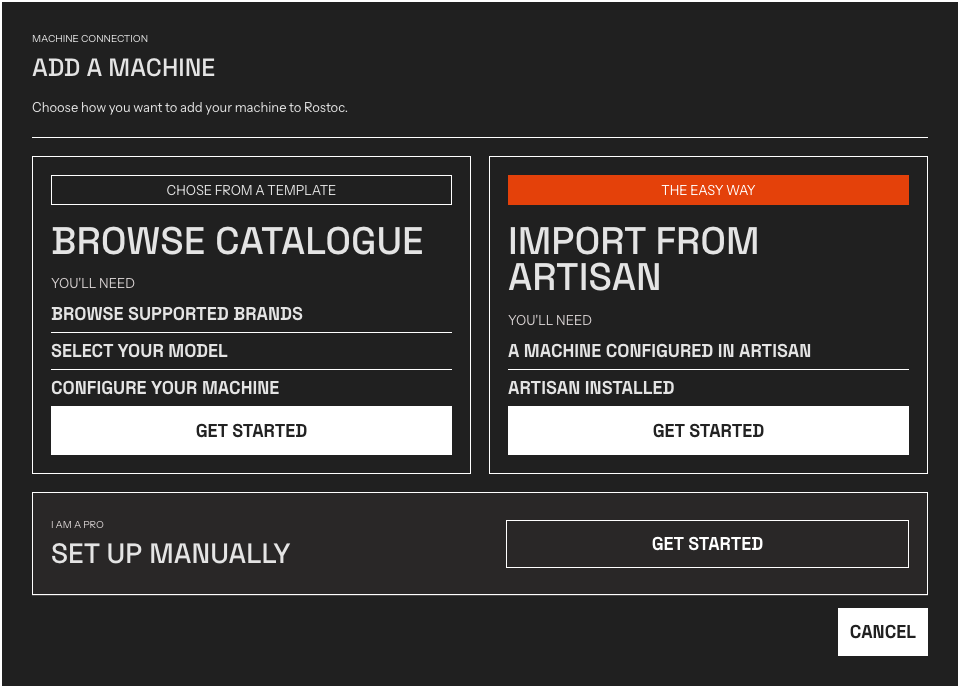
The Add a Machine window. Choose Browse Catalogue to pick your model from the catalog, or import an existing Artisan preset.
Browse the full machine catalog → to find your brand and model, check support status, and see connection details.
The catalog is updated with each Rostoc release.
Status labels mean:
- Supported - ready for regular Rostoc use.
- Experimental - available to test, but confirm the setup before relying on it for production logging.
- Planned - on the roadmap; request support if you need it.
- Not supported yet - not ready today; request support if you need it.
Machine-control support is listed separately on each model page. A Machine may support live data without accepting commands. See Machine controls.
Manual configuration
Section titled “Manual configuration”If your machine isn’t in the catalog, you can configure it manually. You’ll need the connection parameters from your machine’s documentation (IP address or COM port, register map, polling rate). Contact us if you need help finding those details or want to request a catalog entry.