

Serial Setup (Modbus RTU)
Rostoc supports a large group of roasting machines that connect over a serial cable — usually USB or RS-485 — using Modbus RTU. Catalog brands on this path include Pratter, Proaster, Yoshan, Mill City Roasters, Coffed, Berto, Bideli, Besca, Golden Roasters, Toper, and many others.
Support is per catalog entry. Find your exact brand and model in the machine catalog and check its status before relying on the setup for production logging.
What you need
Section titled “What you need”- The machine’s serial port — a USB socket on the control panel, or an RS-485 terminal that needs a USB-to-RS-485 adapter.
- A data-capable USB cable. Charge-only cables look identical but do not work.
- On Windows, the USB-to-serial driver (usually CP210x or FTDI) if the operating system does not show a COM port.
- Other roasting software closed — only one application can hold a serial port at a time.
If your machine has an RS-485 terminal instead of a USB socket, check the machine documentation for the A/B wiring and use a USB-to-RS-485 adapter. Swapped A/B wires are the most common cause of a silent connection.
Add the machine
Section titled “Add the machine”- Connect the machine to the computer and power it on.
- Open Settings -> Machines in Rostoc.
- Click Add Machine, then choose Browse Catalogue.
- Search for your brand and model in the catalog.
- Select the exact catalog entry. Serial settings such as baud rate come pre-filled from the catalog.
- Choose the serial port the machine appears on. The port list shows each port’s description and manufacturer, so you can tell the machine’s adapter apart from other serial devices.
- Run Test Connection.
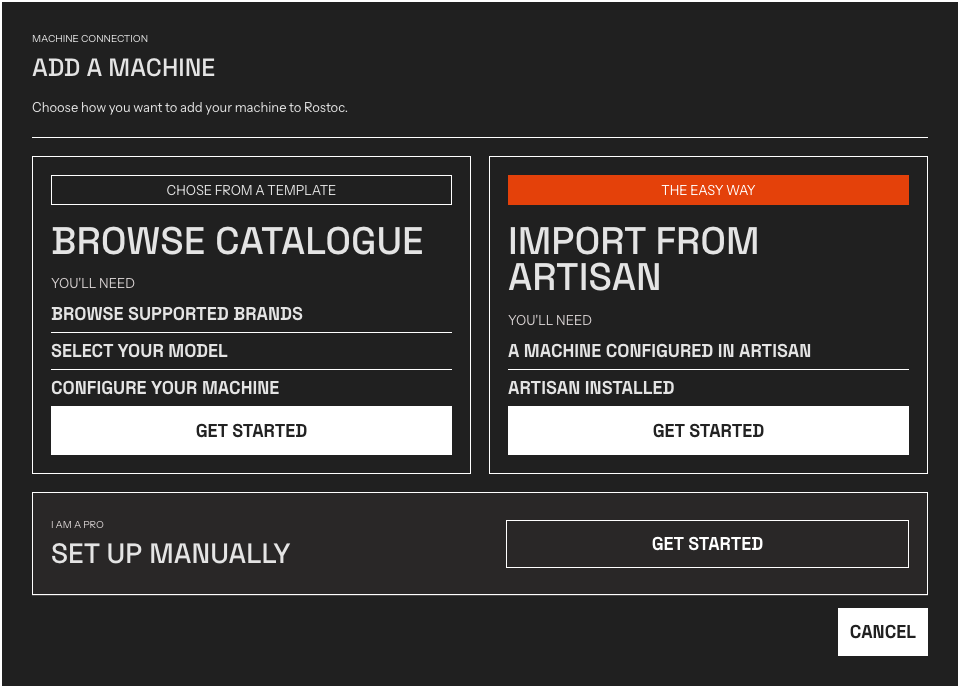
The Add a Machine window. Browse Catalogue opens the machine catalog.
On Windows, the COM port number can change after reconnecting the cable or switching USB sockets. Recheck the port if the connection stops working after you moved the cable.
If your model is not in the catalog, you can configure the connection manually with the register details from your machine’s documentation, or contact us to request a catalog entry.
Validate the first roast
Section titled “Validate the first roast”Run a short validation roast before production use:
- bean temperature and environmental temperature match the machine display
- feedback streams such as burner, drum speed, or fan setpoints appear in the feedback area, not as extra temperature curves
- labels and units make sense for the exact machine
- the saved Batch reopens with the same streams, units, and chart routing
What Rostoc reads
Section titled “What Rostoc reads”Streams are defined per catalog entry. Most Modbus RTU entries read bean temperature and environmental or exhaust temperature; some add feedback streams such as burner setpoint, drum speed, fan setpoint, or pressure. The model page in the machine catalog lists the exact streams for your entry.
Machine controls
Section titled “Machine controls”Some Modbus RTU catalog entries also expose direct controls — for example burner, drum-speed, or fan setpoints — that you can operate from Roast Studio. Telemetry and control are separate capabilities: a machine can be readable without being controllable, so check the exact model page for what your entry supports.
See Machine controls for how controls are armed, operated, and kept safe during a roast.
Troubleshooting
Section titled “Troubleshooting”- No COM port appears — install the USB-to-serial driver, try another data-capable cable, and check Device Manager (Windows) for warning icons under “Ports (COM & LPT)”.
- Test Connection fails on the right port — confirm the machine is fully powered on and past its startup sequence, and that no other roasting software holds the port.
- Connection works, then stops after replugging — the COM port number changed. The Machine settings show Port not detected next to the saved port when it is no longer there; select the new port.
- RS-485 adapter connects but reads nothing — swap the A/B wires and try again.
- Readings look wrong — confirm the selected catalog entry matches the exact model and control panel generation; a nearby entry can have a different register layout.
See Troubleshooting Connections for general USB and serial checks.