

Home
Home is where Rostoc opens. It answers two questions before you have clicked anything: what needs you today, and what you can start roasting right now. Underneath both sits the record of everything you have roasted.
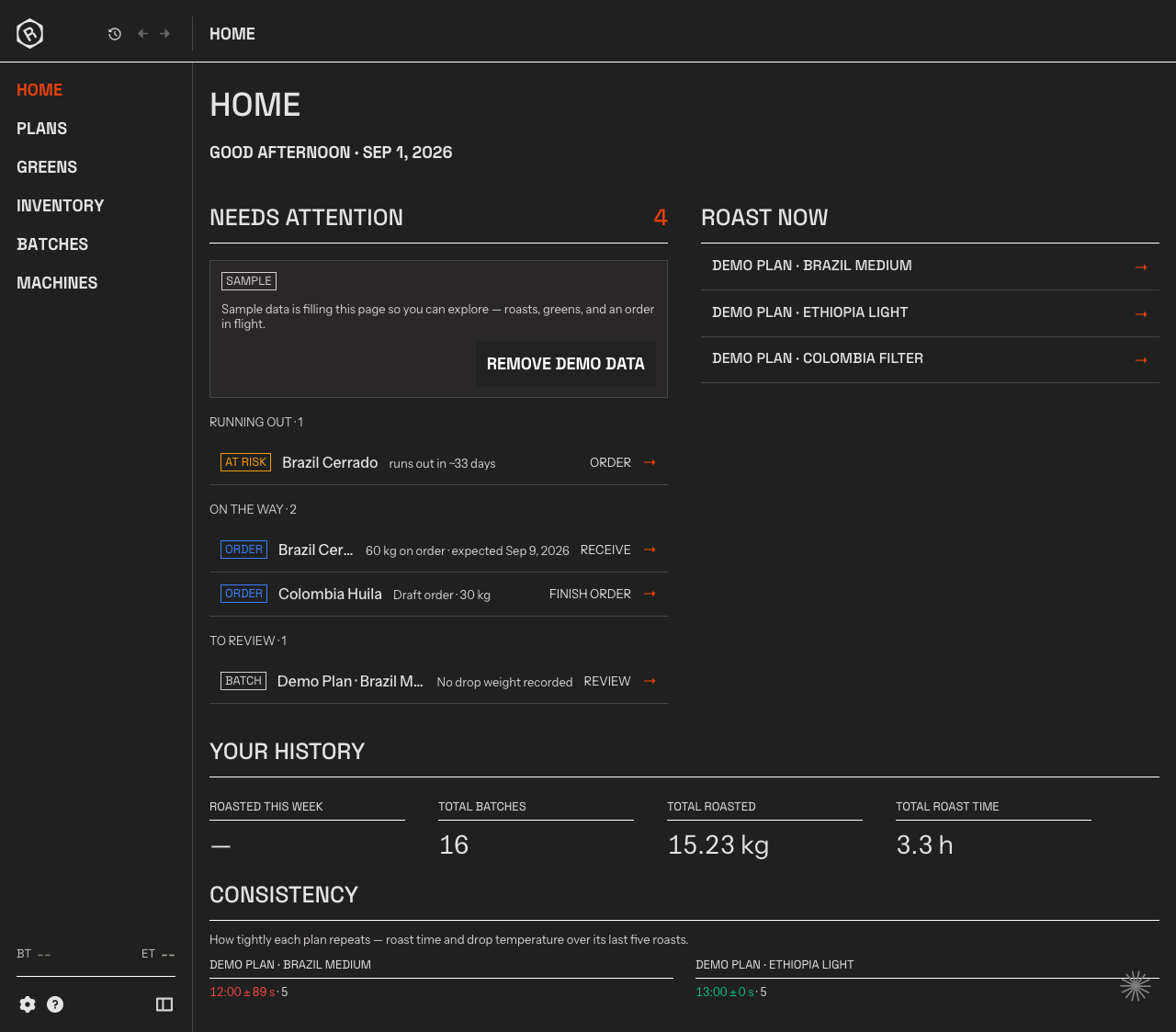
Home on a new account, with the sample data still in place — what needs attention on the left, the Plans you can start on the right, and your roasting record below both.
Press G then H from anywhere in the main window to come back here.
Needs Attention
Section titled “Needs Attention”The left column collects the things waiting on a decision. Rostoc builds it from your own stock, orders, and Batches — nothing is added by hand, and nothing appears unless it is true right now. The count beside the heading is the total.
Rows are grouped by what they are, and each row is a door: click it and Rostoc takes you to the screen where the work is done.
| Group | What is in it | Where the row takes you |
|---|---|---|
| Running out | Coffee Lines close to running out, soonest first. The row reads runs out in ~12 days, or estimated already out when the estimate has passed. | The Coffee Line, ready to order |
| On the way | Orders you have confirmed and drafts you have not finished. Confirmed orders read 40 kg on order · expected Sep 9, 2026. | Receiving, or the draft order |
| To review | Batches from the last seven days with no drop weight recorded. | The Batch, ready to complete |
An order whose expected date has passed turns red and reads overdue with the date it was due. Each group shows at most five rows, so a long list never buries the rest.
When there is nothing outstanding, the column says Nothing needs you.
Roast now
Section titled “Roast now”The right column lists the three Plans you roasted most recently. Click one and Rostoc opens Roast Studio with that Plan already chosen — the shortest route from opening the app to charging the drum.
A Plan you have never roasted sits below the ones you have, and archived Plans do not appear at all. If you have no Plans yet, the column tells you so and points at creating one.
Your history
Section titled “Your history”Below both columns is what you have done, in four figures:
- Roasted this week — roasted weight out, for the Batches started since the week began.
- Total batches — every Batch you have ever recorded.
- Total roasted — the roasted weight behind them.
- Total roast time — hours at the machine, from charge to drop.
The two weight figures count only Batches with a drop weight recorded, which is one reason to clear To review.
Occasionally a short line appears above them in accent colour: Record week, Record day, or First roast of a Plan. Rostoc states these against your own history and only while they are still fresh — a record week needs at least five Batches and has to beat every week before it. There is never more than one at a time, and there is no line at all when nothing is true. Records are stated, not scored.
Consistency
Section titled “Consistency”Once a Plan has four or more Batches, a Consistency row appears under the figures. It reads each Plan’s own last five roasts and shows how tightly they repeat, on two measures:
- Roast time — the median charge-to-drop time, plus or minus its spread.
- Drop temperature — the median drop temperature, plus or minus its spread.
Each figure ends with the number of roasts behind it, and is coloured by whether the spread is tight enough to call the Plan repeatable. A small spread means the last five roasts sat close together. This is your consistency against yourself, not against a standard.
While you are still setting up
Section titled “While you are still setting up”A new account sees Get started in place of Needs Attention — the checklist that makes Rostoc yours: connect a Machine, add a green, create a Plan, roast. It stays until you finish it. See Set up Rostoc for what each row does.
New accounts also land on sample data — sample coffees, Lots, Batches, Plans, and an order in flight, so the page has something to show while you look around. A sample notice sits at the top of the column with Remove demo data beside it. Removing it deletes only what Rostoc created; anything you made yourself stays.
The live readout in the sidebar
Section titled “The live readout in the sidebar”At the bottom of the sidebar, on every screen, Rostoc shows the current BT and ET readings from the connected Machine, with a pulsing Recording mark while a Batch is being recorded. Click it to open Roast Studio.
The readout dims when readings stop arriving, rather than holding the last number as though it were current. Hover it for the connection status behind the reading.