

Switch from Artisan to Rostoc
Coming from Artisan? Rostoc imports your machine setup and your roast curves, so the work you already put in carries over. This page covers what moves today and how — we’re expanding the import tools, and this guide grows with them.
What carries over today
Section titled “What carries over today”| From Artisan | Into Rostoc |
|---|---|
| Machine setup | A configured Machine |
| Roast curves | Reference Curves and roast history |
| Slider moves | Action curves on the imported Curve |
| Green coffee records | Green Inventory (Coffee Lines, Lots) |
Imports move one roast at a time today, so start with the references you actually roast against. Bulk import is on our roadmap.
Speaking both languages
Section titled “Speaking both languages”Artisan and Rostoc name a few things differently:
| Artisan says | Rostoc says |
|---|---|
| Roast profile | Curve — the recorded temperature data of a Batch |
| Background profile | Reference Curve — the target you roast against |
| A completed roast log | Batch |
| Machine setup | Machine |
| Custom event sliders | Action curves — your own labels are kept |
Roast events keep their names: Charge, Dry End, First Crack, Second Crack, Drop.
Step 1 — Bring your machine setup
Section titled “Step 1 — Bring your machine setup”Already have a working connection to your roaster? The .aset settings file
carries that setup into Rostoc:
- Save your machine setup as an
.asetfile. - In Rostoc, go to Machines in the sidebar, click Add Machine, and choose Import from Artisan.
- Select the file. Rostoc reads the connection details and how each channel decodes on the wire — including signed and BCD register readings — and creates the Machine. If your setup drives a PID setpoint over Modbus, that slider becomes a real setpoint control in Roast Studio.
- Run Test Connection before relying on it for production roasting.
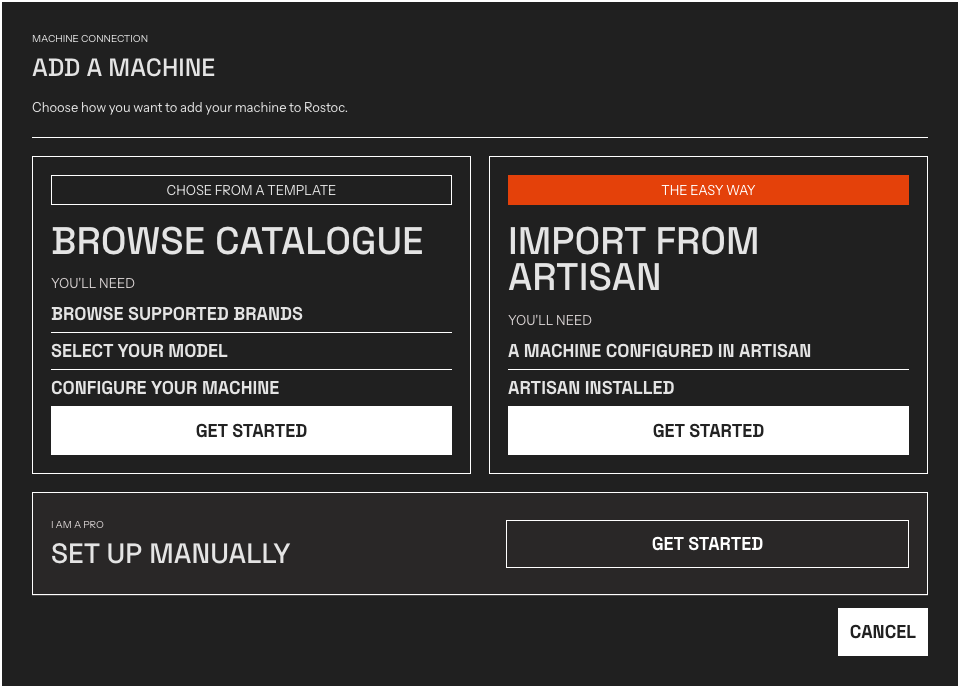
The Add Machine paths. Import from Artisan reads your machine setup file.
If anything in the file is ambiguous, Rostoc flags it for review instead of guessing. See Manage Machines for ongoing machine management.
Step 2 — Bring your best roasts
Section titled “Step 2 — Bring your best roasts”Each saved roast imports as a Curve you can roast against:
- Create or open a Plan for the coffee.
- On the Plan detail page, click Import reference and choose Import from Artisan.
- Select the roast file. The imported Curve becomes the Plan’s Reference Curve, and the roast joins your history as a Batch.
The temperature curves aren’t the only thing that survives the trip. The slider moves you recorded — gas, air, drum, or anything you named yourself — import as action curves on the chart, at the values you actually set, under the labels you gave them. Notes you attached to those moves stay on the Curve too.
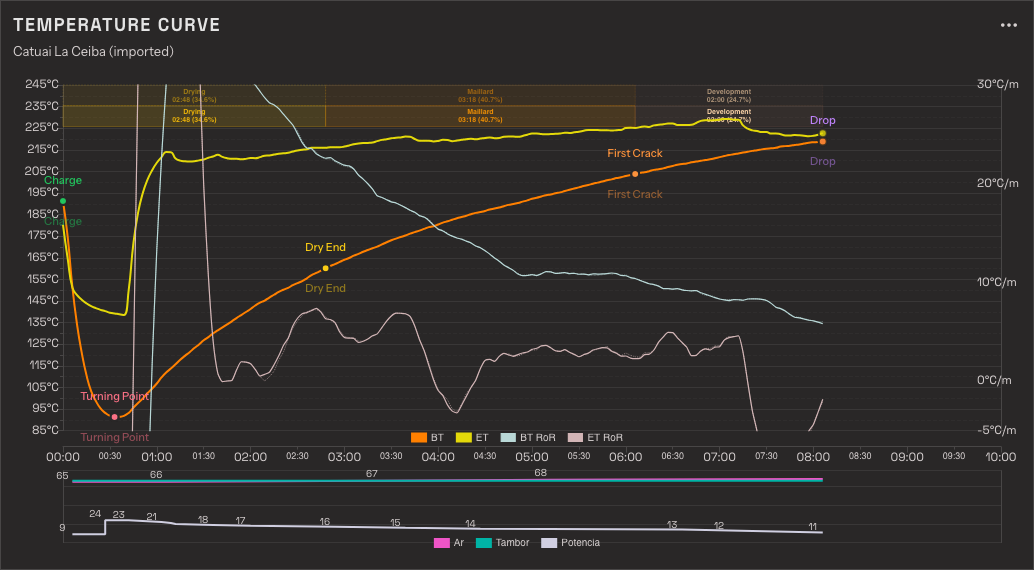
An imported roast. The lower lane charts the slider moves from the original file, still carrying the names the roaster gave them.
One thing Rostoc deliberately repaints: curve colours. Imported curves get Rostoc’s own palette, so every chart in your library reads the same way — your choice of which curves to show is kept, your colour picks are not.
Step 3 — Bring your green coffee
Section titled “Step 3 — Bring your green coffee”If you track green coffee in a spreadsheet (or export one from another tool):
- Go to Greens and open the import option.
- Select your spreadsheet.
- Match your columns to Rostoc fields — Rostoc suggests a mapping automatically.
See Green Inventory for how Coffee Lines, Lots, and Warehouses work.
Not carried over yet
Section titled “Not carried over yet”- Bulk roast import — one roast at a time today.
- Alarms and custom buttons — Rostoc handles marking and Machine controls differently; set these up fresh. (Slider moves in your roast files, and a PID setpoint slider in your machine setup, do carry over — see the steps above.)
- Curve colours — repainted with Rostoc’s palette by design, so imported and native roasts read the same on every chart.
Missing something you need for the move? Tell us — migration imports are actively improving, and real requests set the order.