

Keyboard shortcuts
Rostoc’s desktop-app keyboard shortcuts keep common actions within reach while you plan and record Batches. They do not apply at web.rostoc.co. The available shortcuts change between the main window and Roast Studio, so each key only acts in the part of Rostoc where it is relevant.
Open the shortcut list
Section titled “Open the shortcut list”With focus outside an editable field, press ? to open the shortcut list for the current desktop window. You can also press Command + / on macOS or Ctrl + / on Windows and Linux.
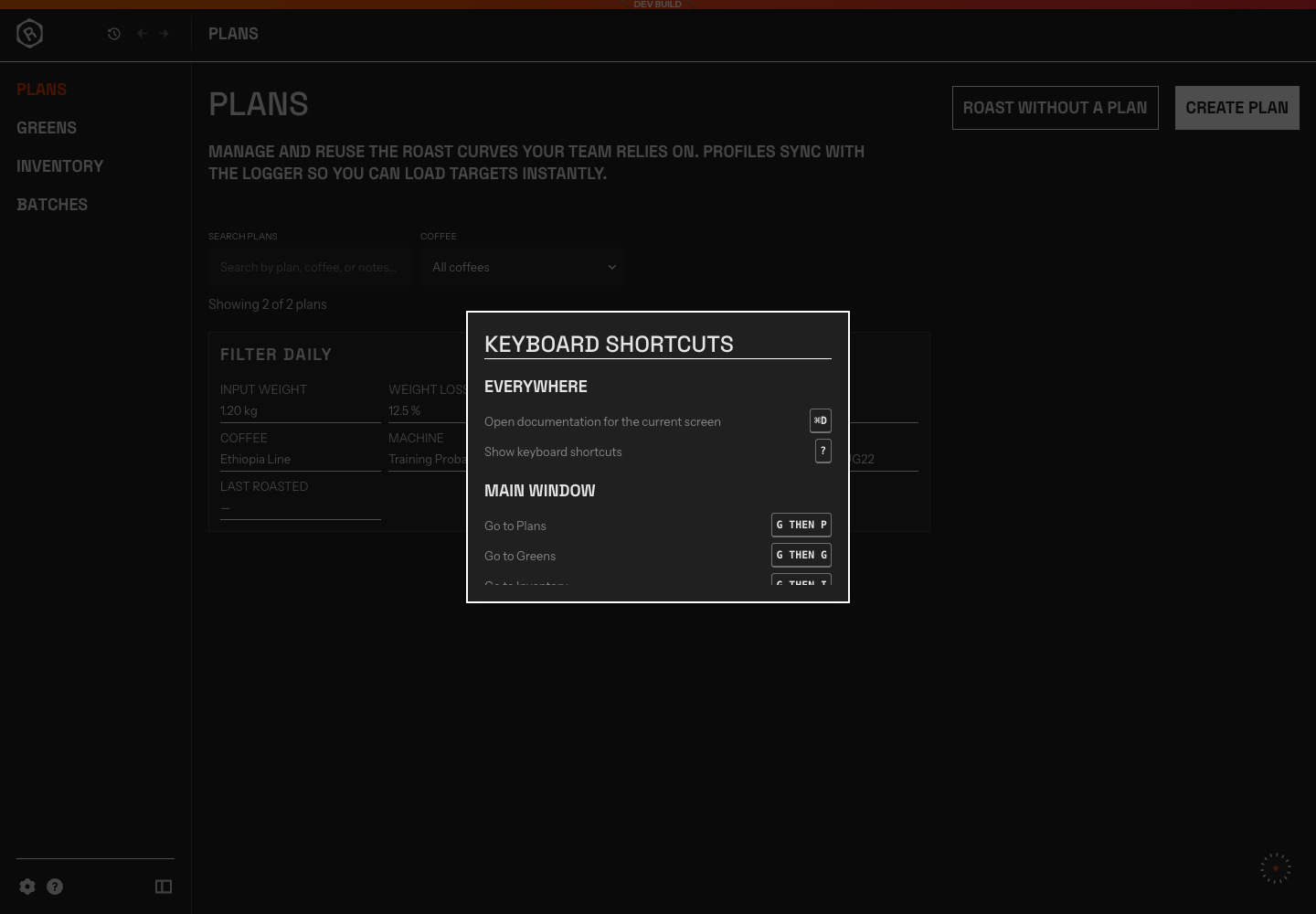
The main-window list includes shortcuts that work everywhere and the G then… navigation sequences.
Press the same shortcut again, press Escape, or close the dialog to return to your work. Other shortcuts are paused while the dialog is open.
Shortcuts that work everywhere
Section titled “Shortcuts that work everywhere”| Action | macOS | Windows and Linux |
|---|---|---|
| Show or hide the shortcut list | ? or Command + / | ? or Ctrl + / |
| Open documentation for the current screen | Command + D | Ctrl + D |
The documentation shortcut opens the guide that matches the screen you are viewing.
Move around the main window
Section titled “Move around the main window”Navigation shortcuts are two-key sequences. Press G, release it, and then press the destination key. Do not hold both keys together.
| Destination | Shortcut |
|---|---|
| Home | G then H |
| Plans | G then P |
| Green Inventory | G then G |
| Inventory Dashboard | G then I |
| Batches | G then B |
| Machines | G then M |
| Settings | G then S |
| Account | G then A |
| Roast Studio | G then R |
After you press G, Rostoc briefly shows key hints beside the main destinations in the sidebar. Press Escape if you do not want to complete the sequence.
Record a Batch in Roast Studio
Section titled “Record a Batch in Roast Studio”Roast Studio shortcuts follow the current roasting state. Rostoc ignores a shortcut when its action is not available, while you are typing in a field, or while a prompt or confirmation is open.
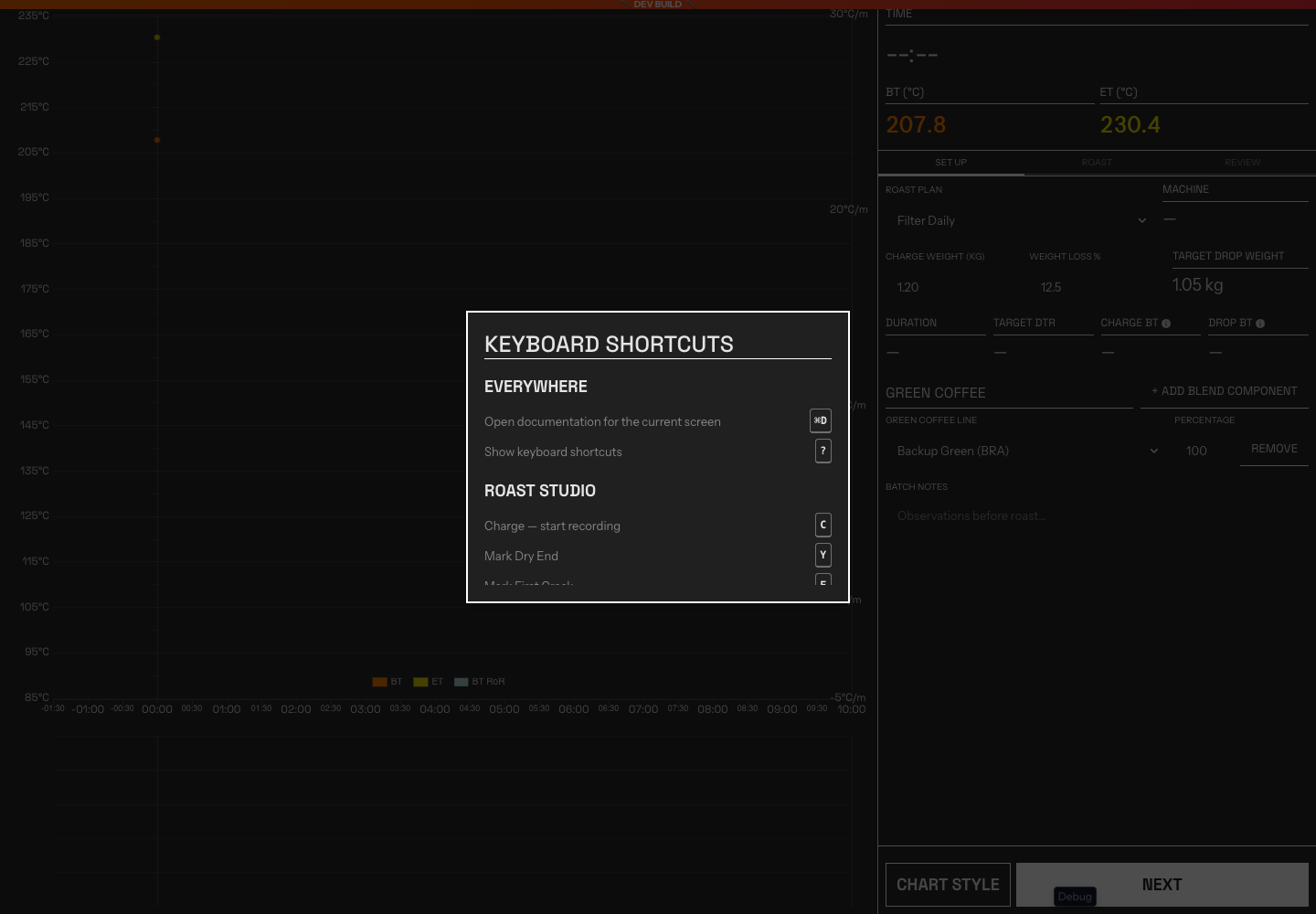
Roast Studio shows its recording and event shortcuts separately from the main-window navigation shortcuts.
Start and mark roast events
Section titled “Start and mark roast events”| Action | Shortcut | When it works |
|---|---|---|
| Charge and start recording | C | Before recording starts |
| Mark Dry End | Y | During recording, when Dry End is available |
| Mark First Crack | F | During recording, when First Crack is available |
| Mark First Crack End | Shift + F | During recording, after First Crack and before Second Crack |
| Mark Second Crack | S | During recording, after First Crack and before Drop |
| Mark Second Crack End | Shift + S | During recording, after Second Crack and before Drop |
| Mark Drop | D | During recording, when Drop is available |
Event shortcuts follow the same order and rules as the on-screen event buttons. Pressing a completed event’s shortcut again removes that event when the on-screen button allows it.
There is no shortcut for stopping or aborting a Batch. These actions keep their confirmation steps to prevent accidental stops.
Log Machine changes
Section titled “Log Machine changes”These shortcuts record a change on the Curve. They do not send a command to the Machine.
| Change to log | Shortcut |
|---|---|
| Gas or burner | B |
| Airflow | A |
| Drum speed | R |
Pressing a key opens a prompt for the new value. Enter the value and confirm it to add the change to the Curve.
Jump to Machine controls
Section titled “Jump to Machine controls”In Roast Studio, press G to reveal positional key hints on the available Machine controls. Then press the key shown on the control you want to use.
The first ten visible controls use the top letter row from left to right:
Q, W, E, R, T, Y, U, I, O, P
For example, if the gas control shows Q, press G then Q. Rostoc opens the numeric editor for a slider or moves keyboard focus to a button or switch. Press Escape to dismiss the hints without selecting a control.
When you edit a numeric control:
- Press Arrow Up or Arrow Down to change the value by 5.
- Press Enter to send the new value.
- Press Escape to cancel the edit and restore the previous value.
Machine control shortcuts are available only when the selected Machine exposes controls that Rostoc can execute. A connected Machine that provides live temperatures is not necessarily controllable.
Turn off single-key shortcuts
Section titled “Turn off single-key shortcuts”Go to Settings → Preferences and turn off Single-key shortcuts if bare letters conflict with an assistive tool or another part of your workstation.
This setting disables ?, the G then… sequences, the Roast Studio letter keys, and Machine control jumps. Shortcuts that use Command or Ctrl remain available, including Command/Ctrl + / for the shortcut list and Command/Ctrl + D for documentation.
If a shortcut does not respond
Section titled “If a shortcut does not respond”Check these points:
- Click outside any text or number field before using the shortcut list or a single-letter shortcut.
- Close any open prompt, confirmation, or the shortcut list.
- Confirm that Single-key shortcuts is on in Settings → Preferences.
- In Roast Studio, confirm that the matching on-screen action is currently available.
- For Machine controls, confirm that the selected Machine is connected and that the control is enabled.