

Ethernet Setup (Modbus TCP)
Rostoc supports a large group of roasting machines that connect over Ethernet using Modbus TCP. This is the most common connection path for supported machines in the catalog, including models from Loring, Carmomaq, Atilla, Toper, Diedrich, Probat (Probatone), Joper, IMF, Coffed, Besca, Typhoon, and many others.
Support is per catalog entry. Find your exact brand and model in the machine catalog and check its status before relying on the setup for production logging.
What you need
Section titled “What you need”- The machine’s Ethernet port, or the control panel port your manufacturer documents for external logging.
- An Ethernet cable to your local network, or directly to the computer.
- The machine’s IP address — from the machine display, your existing setup, or the manufacturer’s documentation. If you don’t know it, Rostoc can scan your network during setup.
- Other roasting software closed, so it does not hold the connection.
Some manufacturers require a setting or unlock before external software can read machine data. Check the machine documentation if the connection test fails on a fresh installation.
Connect over Ethernet
Section titled “Connect over Ethernet”Choose one connection path.
Option A: Router or local network
Section titled “Option A: Router or local network”- Connect the machine to your network with Ethernet.
- Connect the computer to the same network by Wi-Fi or Ethernet.
- Confirm the machine’s IP address.
Option B: Direct Ethernet cable
Section titled “Option B: Direct Ethernet cable”- Connect Ethernet directly from the machine to the computer.
- Set the computer’s Ethernet adapter to a manual IP address in the same subnet as the machine.
- Use the same subnet mask as the machine and a different IP address.
- Leave gateway and DNS blank unless the machine manual gives values.
Add the machine
Section titled “Add the machine”- Open Settings -> Machines in Rostoc.
- Click Add Machine, then choose Browse Catalogue.
- Search for your brand and model in the catalog.
- Select the exact catalog entry and review the pre-filled connection details.
- Enter the machine’s IP address, or find it with a network scan.
- Run Test Connection.
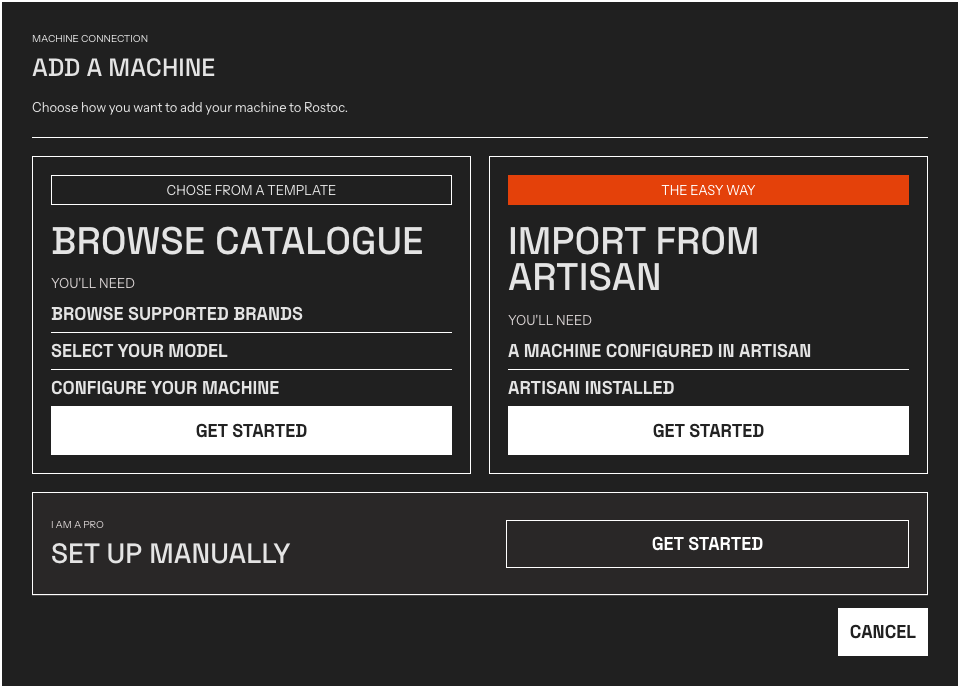
The Add a Machine window. Browse Catalogue opens the machine catalog.
If your model is not in the catalog, you can configure the connection manually with the register details from your machine’s documentation, or contact us to request a catalog entry.
Find the IP address with a network scan
Section titled “Find the IP address with a network scan”If you don’t know the machine’s IP address, click Scan network under the IP address field. Rostoc asks every address on your computer’s local network whether anything answers on the machine’s port — 502 for Modbus TCP, or the port you have configured — and lists everything that does. Pick a result to fill in the address.
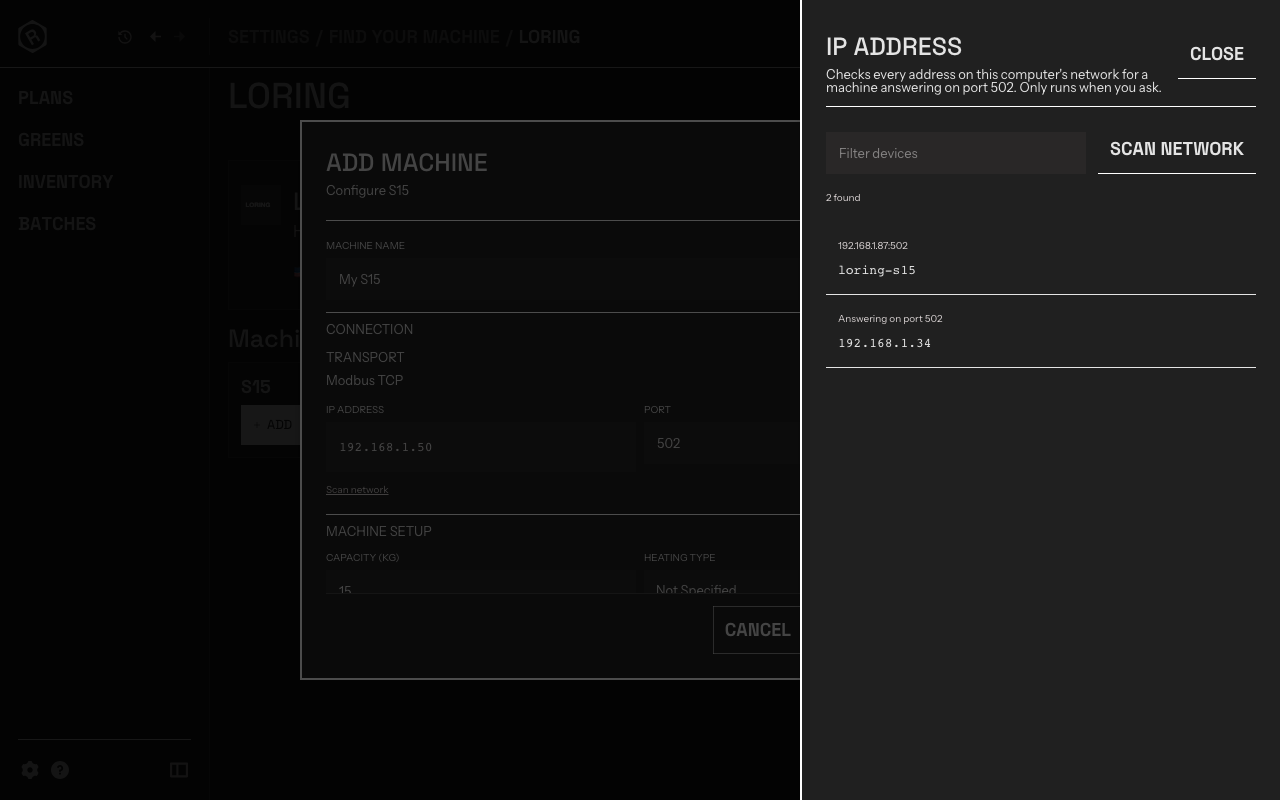
The network scan drawer. Each result shows the address and port that answered, plus the device’s network name when your router knows one.
- The scan runs only when you start it — Rostoc never sweeps your network in the background.
- It takes a few seconds and only checks your computer’s own local network, so the machine must already be connected to the same network (or directly to the computer) for it to appear.
- The scan asks about one port only, and the drawer names it. A machine configured for a different port stays as silent as a machine that is switched off — if nothing answers, confirm the port first, then scan again.
Typing the address by hand always remains available; the scan is an assist, not a requirement.
Validate the first roast
Section titled “Validate the first roast”Run a short validation roast before production use:
- bean temperature and environmental temperature match the machine display
- feedback streams such as burner, airflow, pressure, or drum speed appear in the feedback area, not as extra temperature curves
- labels and units make sense for the exact machine
- the saved Batch reopens with the same streams, units, and chart routing
A successful connection test is not enough on its own — wrong connection details can still produce misleading data, so compare against the machine display once.
What Rostoc reads
Section titled “What Rostoc reads”Streams are defined per catalog entry. Most Modbus TCP entries read bean temperature and environmental or exhaust temperature, and many add feedback streams such as burner or gas setpoint, airflow, pressure, drum speed, or inlet temperature. The model page in the machine catalog lists the exact streams for your entry.
Machine controls
Section titled “Machine controls”Many Modbus TCP catalog entries also expose direct controls — for example burner, airflow, or drum-speed setpoints — that you can operate from Roast Studio. Telemetry and control are separate capabilities: a machine can be readable without being controllable, so check the exact model page for what your entry supports.
See Machine controls for how controls are armed, operated, and kept safe during a roast.
Troubleshooting
Section titled “Troubleshooting”- Test Connection fails — run a network scan to check the machine is visible at all; confirm the computer can reach the machine’s IP address; check cabling, adapter status, and (for direct connections) that the manual IP is in the machine’s subnet.
- Connection drops or times out — check that no other roasting software is connected to the machine, and that firewall or network security software is not blocking local traffic.
- Readings look wrong — confirm the selected catalog entry matches the exact model and control panel generation; a nearby entry can have a different register layout.
- The machine is on Wi-Fi through a bridge — prefer a wired connection for production roasting; wireless bridges add dropouts that look like machine faults.
See Troubleshooting Connections for general network checks.