

Switch from Cropster to Rostoc
Coming from Cropster? Rostoc imports your roast curves and your green coffee lots directly from Cropster’s own exports. This page covers what moves today and how — we’re expanding the import tools, and this guide grows with them.
What carries over today
Section titled “What carries over today”| From Cropster | Into Rostoc |
|---|---|
| Exported roasts | Reference Curves and roast history |
| Recorded gas and air | Action curves on the imported Curve |
| Lot / inventory exports | Green Inventory (Coffee Lines, Lots) |
| Your roasting machine | A configured Machine |
Imports move one roast at a time today, so start with the references you actually roast against. Bulk import is on our roadmap.
Speaking both languages
Section titled “Speaking both languages”Cropster and Rostoc name a few things differently:
| Cropster says | Rostoc says |
|---|---|
| Roast profile | Curve — the recorded temperature data of a Batch |
| Reference roast | Reference Curve — the target you roast against |
| A completed roast | Batch |
| Lot | Lot — same idea, grouped under a Coffee Line |
| Blend | A Plan with blend components |
Roast events keep their names: Charge, Dry End, First Crack, Second Crack, Drop.
Step 1 — Set up your Machine
Section titled “Step 1 — Set up your Machine”Cropster doesn’t export machine connection settings, so set up your roaster from Rostoc’s catalog:
- Go to Machines in the sidebar, click Add Machine, and choose Browse Catalogue.
- Search your manufacturer and model. Supported entries pre-fill the connection settings.
- Run Test Connection before relying on it for production roasting.
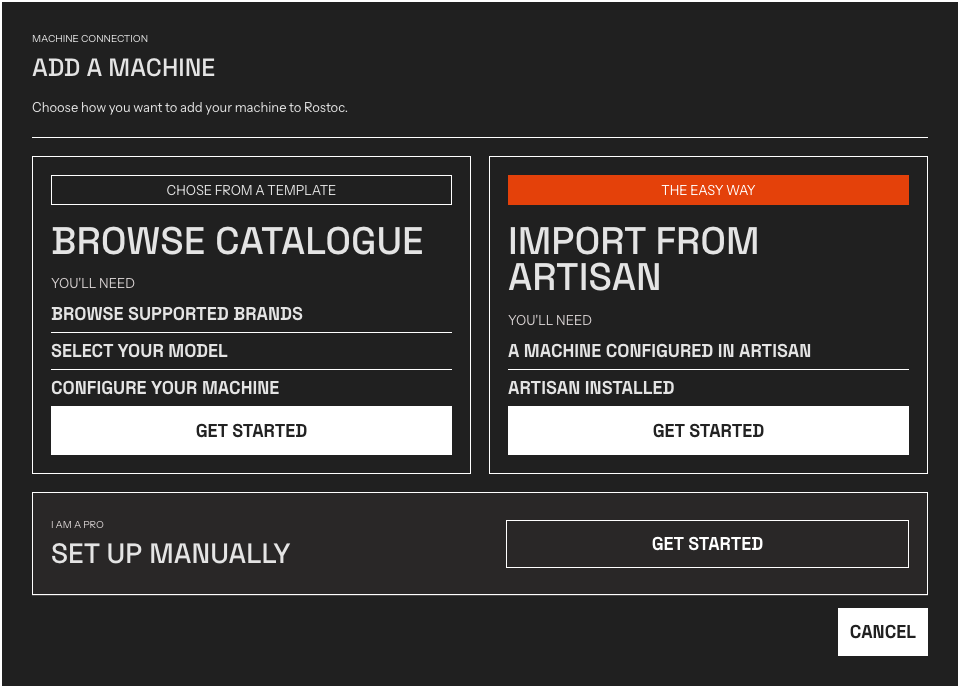
The Add Machine paths. Browse Catalogue covers 260+ machines by brand and connection type.
The hardware guides walk through the common brands and connection types.
Step 2 — Bring your best roasts
Section titled “Step 2 — Bring your best roasts”Each roast exported from Cropster imports as a Curve you can roast against:
- In Cropster, open the roast and export it.
- In Rostoc, create or open a Plan for the coffee.
- On the Plan detail page, click Import reference and choose Import from Cropster.
- Select the exported file. The imported Curve becomes the Plan’s Reference Curve, and the roast joins your history as a Batch.
Step 3 — Bring your green coffee
Section titled “Step 3 — Bring your green coffee”Cropster’s lot export imports directly — no conversion needed:
- In Cropster, export your lots or inventory to a spreadsheet.
- In Rostoc, go to Greens and open the import option.
- Select the exported file. Rostoc recognizes Cropster’s columns and suggests the mapping automatically — review it and confirm.
See Green Inventory for how Coffee Lines, Lots, and Warehouses work.
Not carried over yet
Section titled “Not carried over yet”- Bulk roast import — one roast at a time today.
- Cupping and QC records — not imported yet.
- Production schedules — recreate as Plans.
Missing something you need for the move? Tell us — migration imports are actively improving, and real requests set the order.