

Labels and codes
Rostoc gives every roast and every green coffee Lot a short code, and can print that code on a label with a QR code on it. Scan the label later and you land back on the record it came from.
Every Batch and Lot has a code
Section titled “Every Batch and Lot has a code”Codes are assigned for you. You do not type them in and you cannot run out of them.
- Roast Batches are numbered
RB-0001,RB-0002, and so on. - Green coffee Lots are numbered
GL-0001,GL-0002, and so on.
The two sequences are independent, so RB-0001 and GL-0001 are different things and can both exist. Numbering runs across your whole roastery rather than per Machine or per coffee, so a second person roasting on another Machine continues the same sequence. It never restarts — not on a new year, not on a new Plan.
Note: Batches and Lots recorded before numbering arrived keep the codes they already had. A printed label is never rewritten, so what is on a bag in your warehouse stays true.
Where you see the code
Section titled “Where you see the code”The code leads wherever a roast is named: the Batch column on the Batches screen, the title of the batch detail view, the Roast Batch column on the plan detail view, and the title above the Curve.
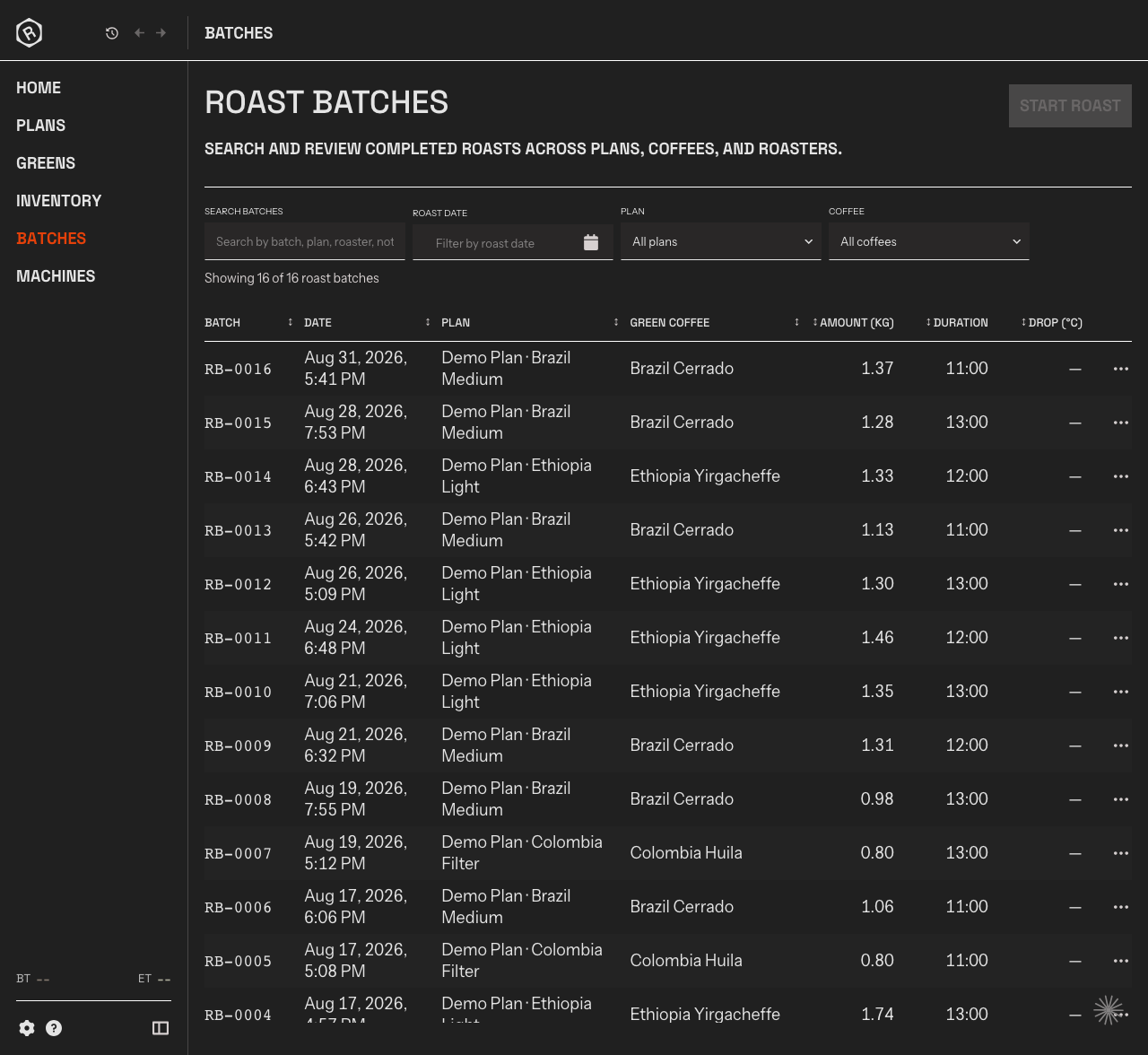
The Batch column sorts by number, so the newest roast is the highest code.
Green Lots show their code the same way, on the Lot row and at the top of the Lot itself.
Print a label for a Batch
Section titled “Print a label for a Batch”There are three ways in:
- On the Batches screen, open the … menu at the end of any row and choose Print label.
- On a batch detail view, choose Actions, then Print label.
- Straight after a roast, the message confirming the roast was saved offers Print label.
Print a label for a Lot
Section titled “Print a label for a Lot”- On a Coffee Line, open the … menu at the end of any Lot row and choose Print label.
- On a Lot, choose Actions, then Print label.
Choose the stock and how many
Section titled “Choose the stock and how many”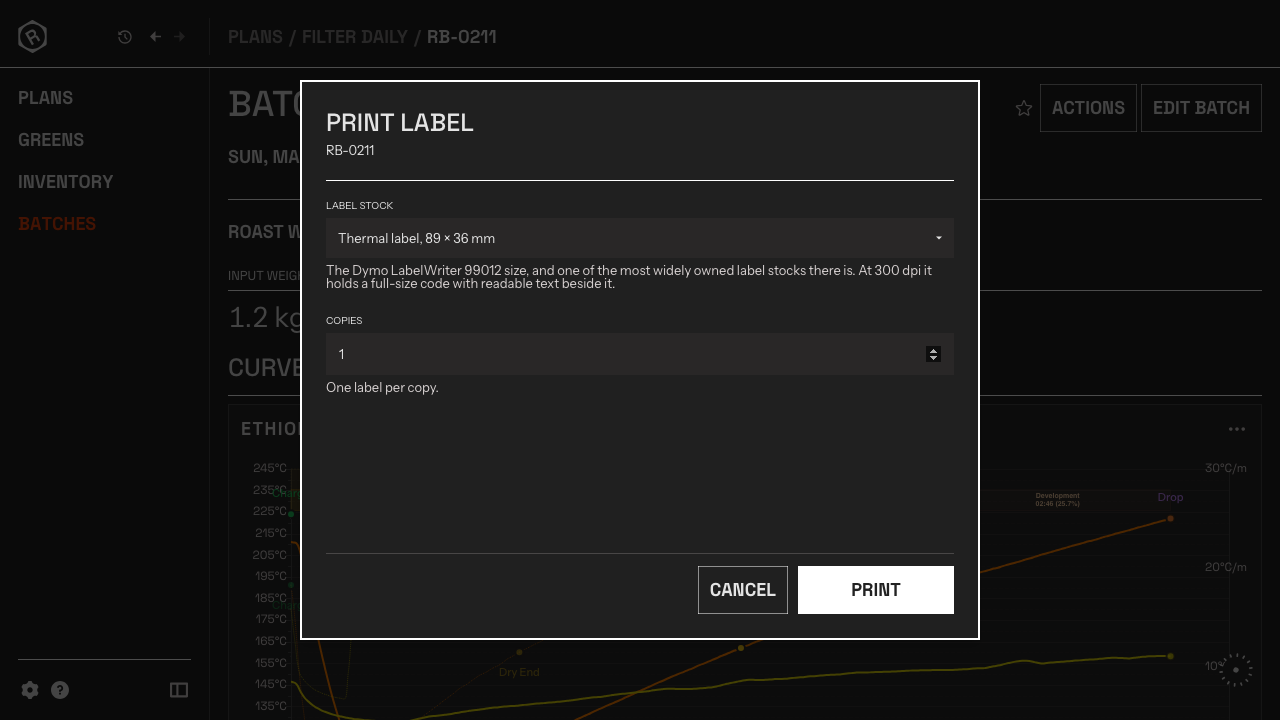
The window names the record it is about to print, so you can check the code before committing a sheet to it.
Pick what you are printing onto:
| Stock | Use it for |
|---|---|
| Thermal label, 89 × 36 mm | A roll on a dedicated label printer |
| A4 sheet, 3 × 7 labels | A sheet of sticky labels in an ordinary printer |
| Letter sheet, 3 × 10 labels | The same, on US Letter |
Copies prints the same label more than once, for when one roast fills several bags or one Lot arrives as several sacks.
Every copy carries the same code, because they are all the same Batch or the same Lot — and printing the label again later produces that same code too, so a smudged sticker can be replaced without the old one going anywhere different. Scan any bag from a roast and you land on that roast.
On the desktop app, Rostoc writes the label and opens it in whatever normally opens PDF files on your computer, where you print it. In the web app, the print window opens directly.
What is on the label
Section titled “What is on the label”A Batch label carries the code in large type, the green coffee it was roasted from with the percentages of a blend, the Plan, when it was roasted, and the weight out.
A Lot label carries the code, the coffee, the supplier, the country of origin, the weight the Lot started at written as Initial, and when the Lot was recorded.
It deliberately does not print how much is left. A sticker cannot be updated, so a stock level would be wrong after the first roast draws from that sack — where the starting weight stays true for as long as the label is readable.
Anything the record does not have is left out rather than printed as a blank line, so a Lot with no supplier gets the remaining details moved up instead of a gap. The smallest stock, Letter, has room for the code, the coffee and one detail line; a thermal label or an A4 sheet carries the rest.
Both carry a QR code, and the same code again in plain characters underneath so it can be read aloud or typed in when a scan fails.
Scan a label
Section titled “Scan a label”With a phone
Section titled “With a phone”Point a phone camera at the QR code and open the link it offers. Rostoc opens the record the label came from — the Batch or the Lot.
If the desktop app is running on that computer, the link hands off to it and the record opens there. Otherwise the page offers Use Rostoc in the browser, and the web app opens the record instead. Either way the scan lands on the record; the page in between tells you which door it is trying.
You will be asked to sign in if you are not already, and you are returned to the record afterwards. A code belonging to another roastery is not readable by you.
With a barcode scanner
Section titled “With a barcode scanner”In the desktop app, a hardware scanner works from any screen in the main window — you do not have to open anything first. Scan a label and Rostoc opens the record it belongs to. The web app does not listen for a scanner; use a phone there.
A scanner is a keyboard as far as your computer is concerned, so Rostoc recognises one by how fast it types: a burst far quicker than a person, ending in Enter. It stays out of the way while you are typing in a field, so scanning into a search box shows you the text rather than jumping away. Roast Studio is a separate window and never listens, so a stray scan cannot mark a milestone on a live roast.
You can also paste a scanned label URL into the main window and Rostoc will resolve it the same way. Scan on Green Inventory or Inventory opens a screen that does nothing but wait for the next scan, for when you are working through a shelf.
When a code does not resolve
Section titled “When a code does not resolve”If you scan a Lot that has since been merged into another Lot, Rostoc says which Lot it went into and links you there, rather than showing you an empty record. A code whose record has been deleted, or that was never bound to anything, says so plainly instead of failing silently.