

iKawa Bluetooth Setup
Rostoc has experimental read-only support for iKawa sample roasters over Bluetooth LE. Use this guide for these catalog entries:
- IKAWA Home
- IKAWA Pro — including Pro50 and Pro100 units
- IKAWA Pro X — including Pro100x and Pro50x units
The iKawa runs its roast profile from the official iKawa app as usual. Rostoc listens alongside that workflow: it polls the roaster for live readings and saves them with the roast record. Direct machine control is not part of this experimental slice — Rostoc never starts, stops, or modifies a roast, and it never changes the profile stored on the roaster.
What Rostoc can read
Section titled “What Rostoc can read”For all three catalog entries, Rostoc reads live telemetry and saves it with the roast record.
Expected streams:
- bean temperature
- environment temperature
- setpoint
- heater feedback
- fan feedback and fan RPM
- machine state, such as pre-heating, roasting, or cooling
IKAWA Pro X entries additionally expose humidity readings.
iKawa roasters are fluid-bed machines that measure air temperature above and below the bean bed rather than with a probe buried in the beans. Rostoc records the above-bed reading as bean temperature and the below-bed reading as environment temperature, matching the convention other roasting software uses for these machines.
What you need
Section titled “What you need”- Confirm the catalog entry matches your roaster: Home, Pro, or Pro X.
- Enable Bluetooth on the computer.
- Keep the computer close to the roaster during setup.
- Allow Rostoc to use Bluetooth if your operating system asks. On macOS this prompt appears the first time Rostoc scans; if it was dismissed, grant access under System Settings -> Privacy & Security -> Bluetooth.
- Close or disconnect the official iKawa app on your phone before connecting Rostoc. The roaster accepts one Bluetooth connection at a time, and a second connection destabilizes both.
- No pairing or PIN is required — the roaster is discovered directly during a scan.
- Treat the first roast as a validation roast before relying on the setup for production records.
Add from the catalog
Section titled “Add from the catalog”- Open Settings -> Machines in Rostoc.
- Click Add Machine and browse the catalog.
- Search for iKawa.
- Choose the entry for your roaster: Home, Pro, or Pro X.
- Confirm the support status is Experimental.
- Under Connection, click the Bluetooth Device field. A device drawer opens.
- Click Scan for devices. The scan listens for nearby advertising roasters for a few seconds, so keep the roaster powered on and close by. Scanning holds the radio, so Rostoc only runs it when you ask.
- Select your roaster. It normally advertises as IKAWA. A matching device whose name has not arrived yet is listed as iKawa device mid-scan — that is normal, and you can select it.
- Save the machine and run a connection test.
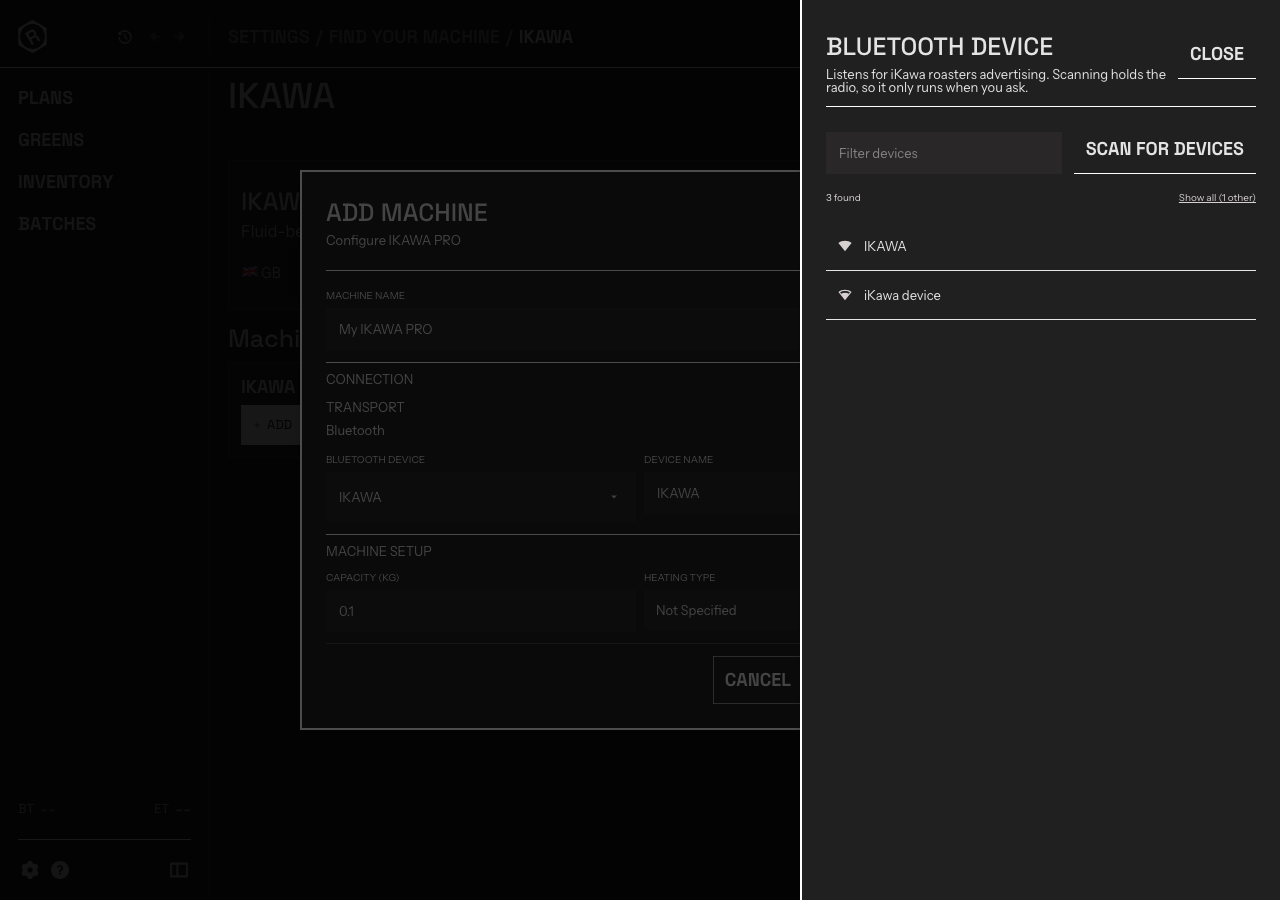
The Bluetooth device drawer mid-scan. Matching roasters are listed first; anything else nearby stays behind Show all.
Connecting can take several seconds — the roaster advertises slowly, and some systems need a few advertisement windows to find it. Rostoc budgets for this, so let the connection attempt finish rather than cancelling early.
Validate the first roast
Section titled “Validate the first roast”During the first test roast, compare Rostoc with the iKawa app display or your trusted roasting workflow.
Check:
- bean and environment temperature move in the expected direction through pre-heat, roast, and cooling
- heater and fan values appear as feedback streams, not temperature streams
- the machine state follows the roast: pre-heating, ready, roasting, cooling
- the saved batch reopens with the same stream labels and values
- no control action is expected from Rostoc
Troubleshooting
Section titled “Troubleshooting”- The roaster is not found during a scan - confirm the roaster is powered on, move the computer closer, and check that Bluetooth is enabled and Rostoc has permission to use it. Then scan again.
- The scan finds the roaster but the connection fails - close the official iKawa app on your phone; the roaster accepts only one Bluetooth connection at a time. Then retry — the first attempt after a scan can also time out harmlessly.
- A row reads “iKawa device” instead of a name - this is a matching roaster whose name has not arrived yet during the scan. Selecting it is fine.
- Readings stop mid-roast - check whether the iKawa app reconnected to the roaster, and keep the computer within Bluetooth range for the whole roast.
- macOS never asked for Bluetooth permission - grant it manually under System Settings -> Privacy & Security -> Bluetooth, then restart Rostoc.
- The general connection troubleshooting guide includes Bluetooth permission checks.
Support report checklist
Section titled “Support report checklist”If the setup still does not connect, send:
- exact iKawa model and catalog entry selected: Home, Pro, or Pro X
- operating system and Rostoc version
- the device name shown during the Bluetooth scan
- whether the official iKawa app was open or connected on a phone nearby
- whether the macOS Bluetooth permission prompt appeared and was granted
- screenshots or notes showing which readings were missing, stuck, or mislabeled
Experimental iKawa reports directly shape the integration — this is the newest Bluetooth path in Rostoc, and field reports from real roasters are what promote it beyond experimental.