

Settings
Settings opens over whatever screen you are on, with its sections listed down the left. Press G then S from the main window, or click the gear at the bottom of the sidebar.
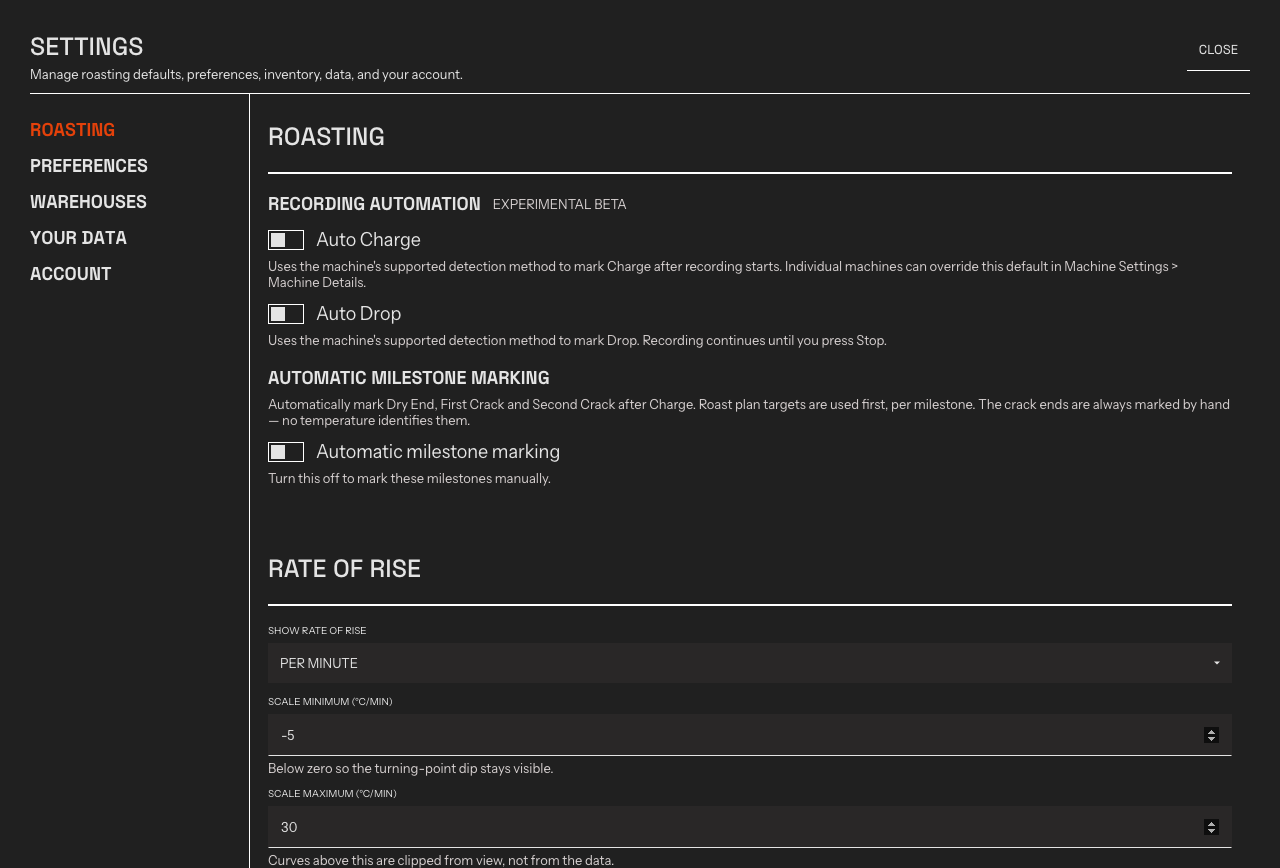
The five sections down the left. Machines are not among them — they have their own place in the sidebar.
The five sections
Section titled “The five sections”| Section | What it holds |
|---|---|
| Roasting | Recording Automation, Automatic Milestone Marking, and the Rate of Rise reading and scale. See Roast Automation and Rate of Rise. |
| Preferences | Appearance, units and currency, keyboard, assistant, and the support tools. Covered below. |
| Warehouses | The storage locations your Lots sit in. See Green Inventory. |
| Your data | Export a copy of your whole account. See Export your data. |
| Account | Your plan, billing, and sign-out. |
Each section has its own address, so a link that points at one lands on it rather than dropping you at the top. Links made before Settings became a hub still work — Rostoc forwards them to the section that now owns them.
Machines are no longer in Settings. They have their own place in the sidebar; press G then M or see Manage Machines.
Appearance
Section titled “Appearance”Rostoc has a light and a dark theme for the whole app. Toggle Dark mode under Appearance to switch between them.
Units & Measurements
Section titled “Units & Measurements”Set how Rostoc displays values everywhere — roasting, inventory, and stock valuation:
- Temperature unit — Celsius or Fahrenheit.
- Working unit — kilograms (kg) or pounds (lb).
- Currency — pick yours from the searchable list.
These are display preferences: changing them converts what you see, so you can switch at any time. Currency is the one you read totals in; each purchase keeps the currency it was actually made in. See Green Inventory for what that means for stock value.
Keyboard
Section titled “Keyboard”The Keyboard group holds the Single-key shortcuts switch — letter keys like F for First Crack work without a modifier. Turn it off if single letters conflict with assistive tools; shortcuts using Cmd or Ctrl stay active. See Keyboard shortcuts for the full list and customization.
Assistant
Section titled “Assistant”Two switches control when the in-app assistant offers help without being asked:
- Batch suggestions — starting points for discussing a roast when you open a Batch. Turn it off and the assistant stays quiet; you can still ask about the Batch yourself.
- Connection help — help offered when a Machine fails to connect.
See AI and support for what the assistant can do.
Support & Diagnostics
Section titled “Support & Diagnostics”The Support & Diagnostics group collects the tools for getting help: Send Feedback reaches the Rostoc team from inside the app, Export Diagnostics creates a ZIP file with logs and system info to share with support, and Open Logs Folder shows the raw log files. See AI and support for when to use each.
Updates
Section titled “Updates”Rostoc keeps itself up to date without interrupting your work. The app checks for updates shortly after it starts and downloads new versions in the background — you’ll see a small progress chip in the top-right corner of the main window while this happens, and you can keep roasting normally.
When the download is ready, the chip changes to Update ready. Click it to review the release notes and choose Restart now or Later:
- Restart now applies the already-downloaded update. On macOS and Linux, Rostoc restarts in a few seconds. On Windows, the app closes and the installer runs — this can take a couple of minutes.
- Later keeps the update waiting; the chip stays in the corner until you’re ready. The downloaded update survives quitting the app, so nothing is re-downloaded next time.
If a roast is recording when you click Restart now, Rostoc asks for confirmation first — restarting mid-roast stops the recording.
You can also check on demand: Rostoc → Check for Updates on macOS, or Help → Check for Updates on Windows and Linux.